Using lists and reminders

Two kinds of things live next to the calendar: lists (groceries, to-dos, packing) and weekly reminders (trash day, recycling, street cleaning). Everyone in the family sees the same ones, and changes show up on every screen within seconds.
Lists
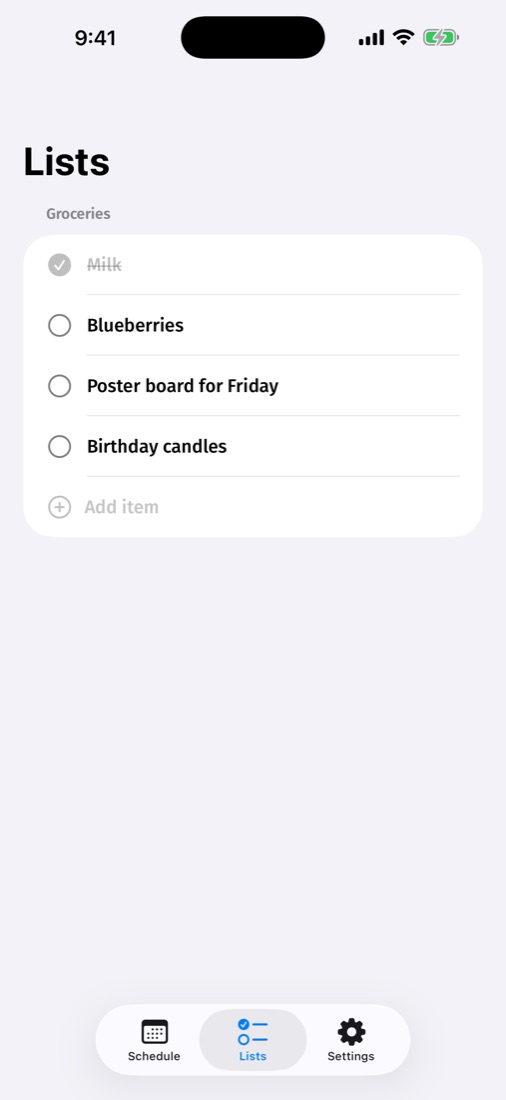
In my.callie.so → Lists & reminders, press + Add next to Lists and give it a name, like “Groceries”. Then add items one by one. You can do the same in the iPhone app's Lists tab.
- Check things off from anywhere. On the TV, select an item with the remote. On a phone or the web, tap its box.
- Checked items stay crossed off so everyone can see what's done. Remove an item with its ✕ when you no longer need it.
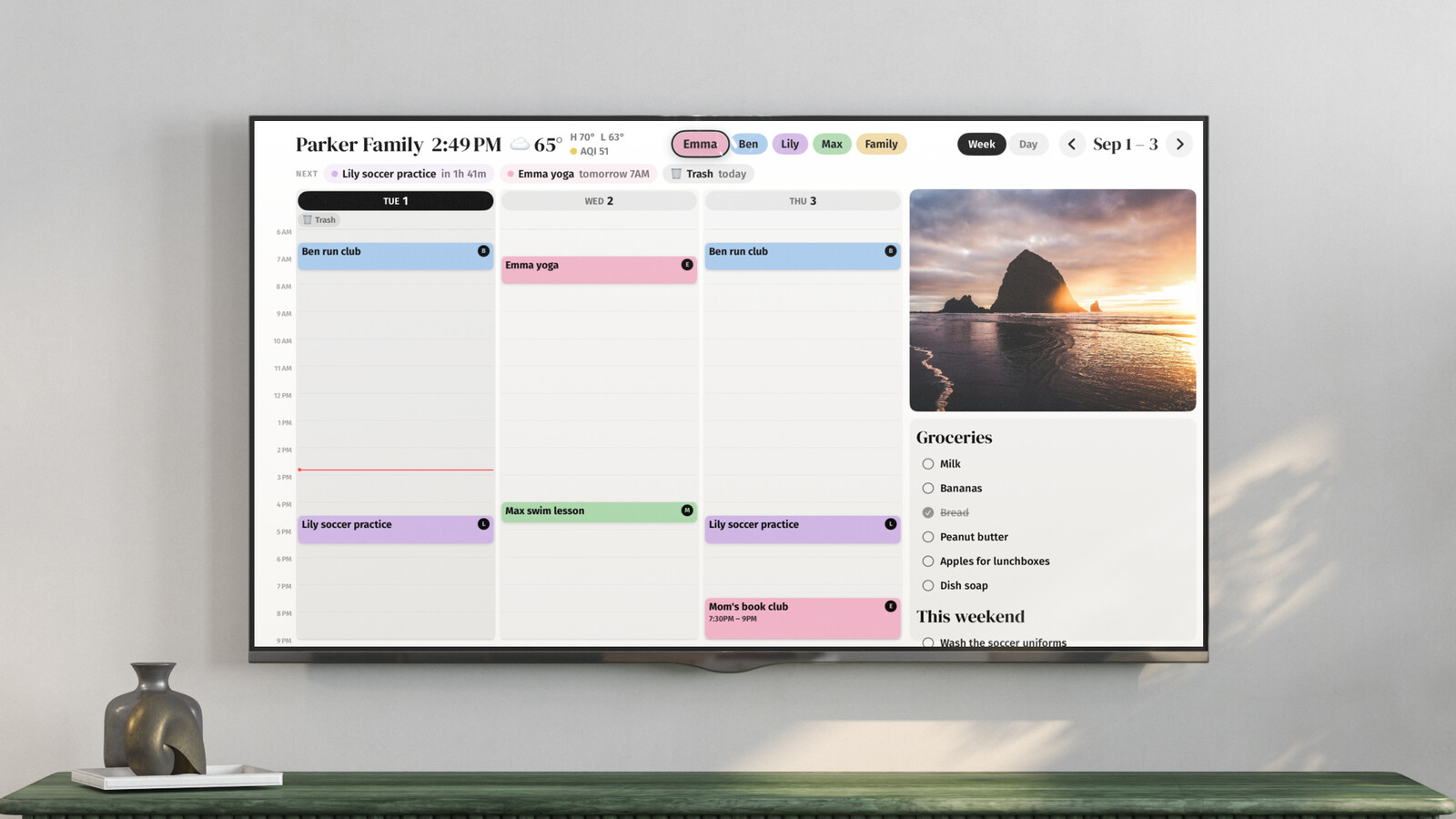
- Put lists on the TV by picking a layout with Lists: on the TV in Settings → Layout, or in my.callie.so → Display. The iPad board follows the same setting.
With lists, photos or cameras beside it, the TV shows 3 days instead of 5. Pick the layout under Display.
Weekly reminders
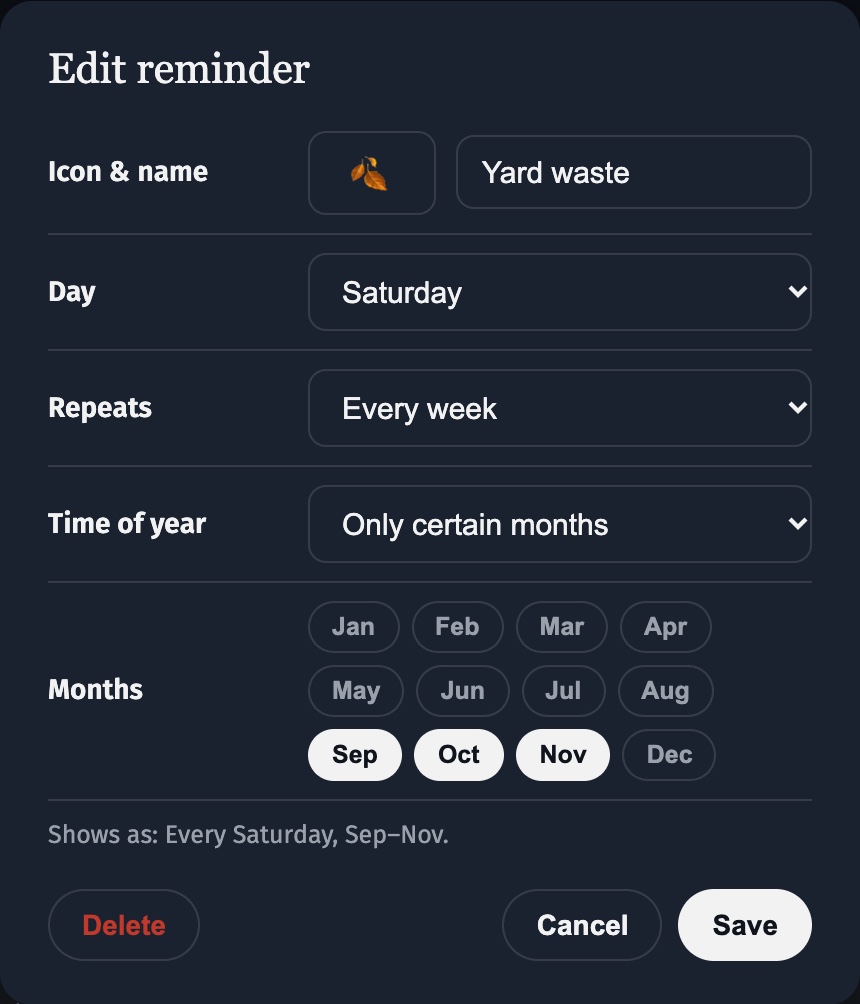
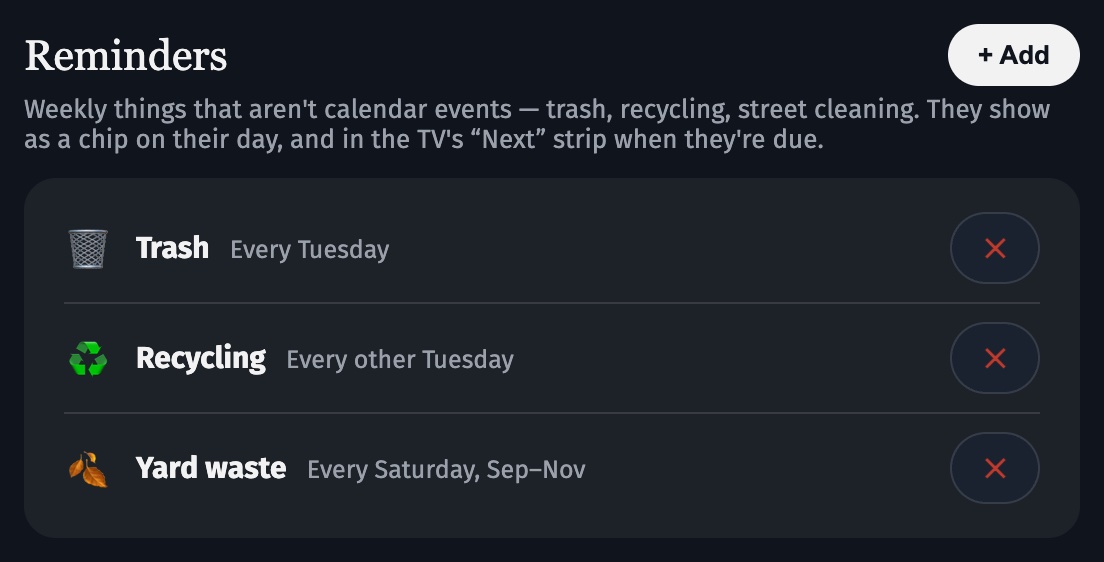
Some things aren't events but still belong on the board. Add them in my.callie.so → Lists & reminders → Reminders → + Add (or start from Trash day, Recycling, or Street cleaning). Pick an icon, a name, and the day.
- Repeat it the way your town does: every week, every other week, on certain weeks of the month (“2nd and 4th Tuesday”, “last Friday”), and all year or only in certain months, like yard waste from September to November.
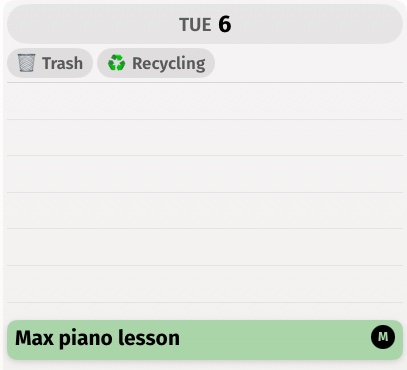
- It shows up without getting in the way: a small chip under its day in the week view, in the day view, and in the TV's “Next” strip the day before and the day of.
- It never clutters the calendar. A reminder doesn't take a slot in the day, and it isn't tagged to a person.
More guides
- Troubleshooting: Events not showing, wrong tags, codes, cameras, deleting your family or account.
- Creating your family: Accounts, passkeys, and inviting up to five more adults.
- Adding calendars: Connect Google or Outlook, or paste the feed link from iCloud and others.
Stuck? Contact us for help.