Creating your family

Callie starts on the web. One account is enough to run the whole thing.
- Open my.callie.so and choose Create your family.
- Enter your name, email and a family name.
- Choose Create Family with Passkey and approve the Face ID or Touch ID prompt, or choose Use a password instead. A computer without Touch ID or Windows Hello asks for a password from the start.
- You land on Getting started, which walks you through adding a calendar and linking a screen.
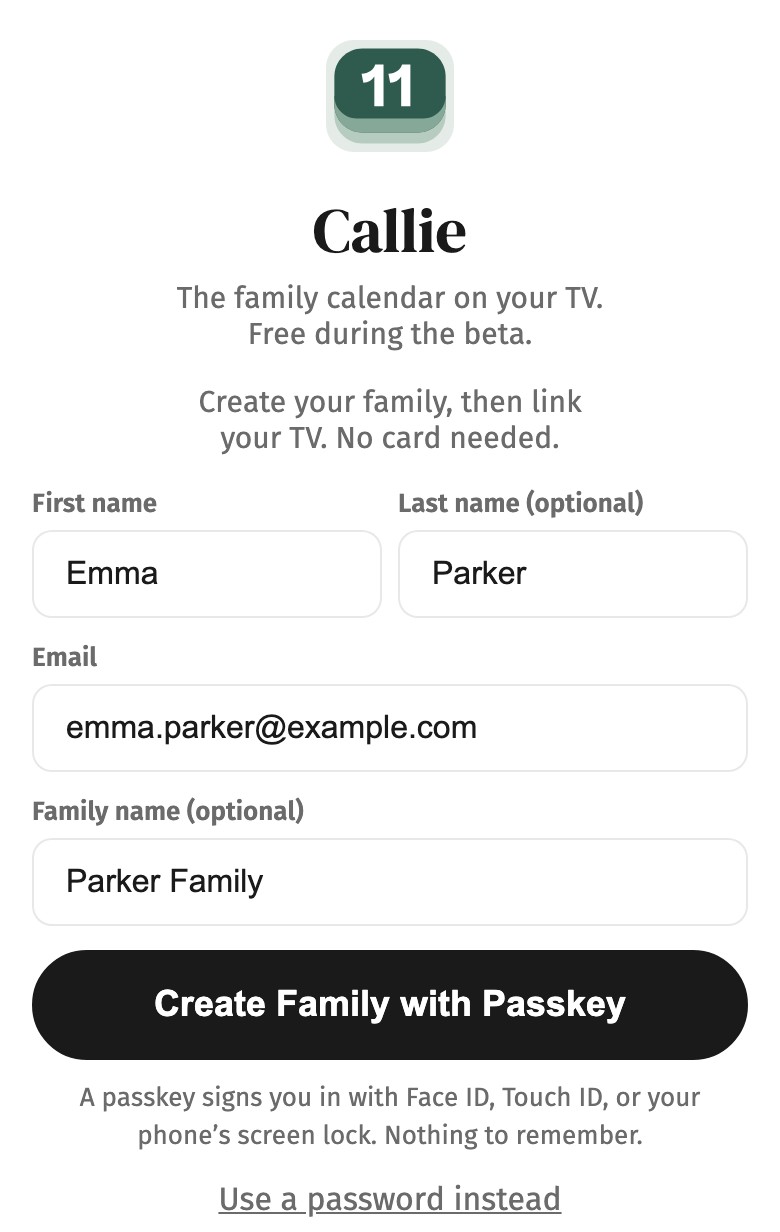
How to sign in without a password
Callie is passkey-first: sign in with Face ID or Touch ID and there's no password to forget. You can set a password too, under Household → Me, and reset links go to your email if you're ever locked out.
How to invite other adults
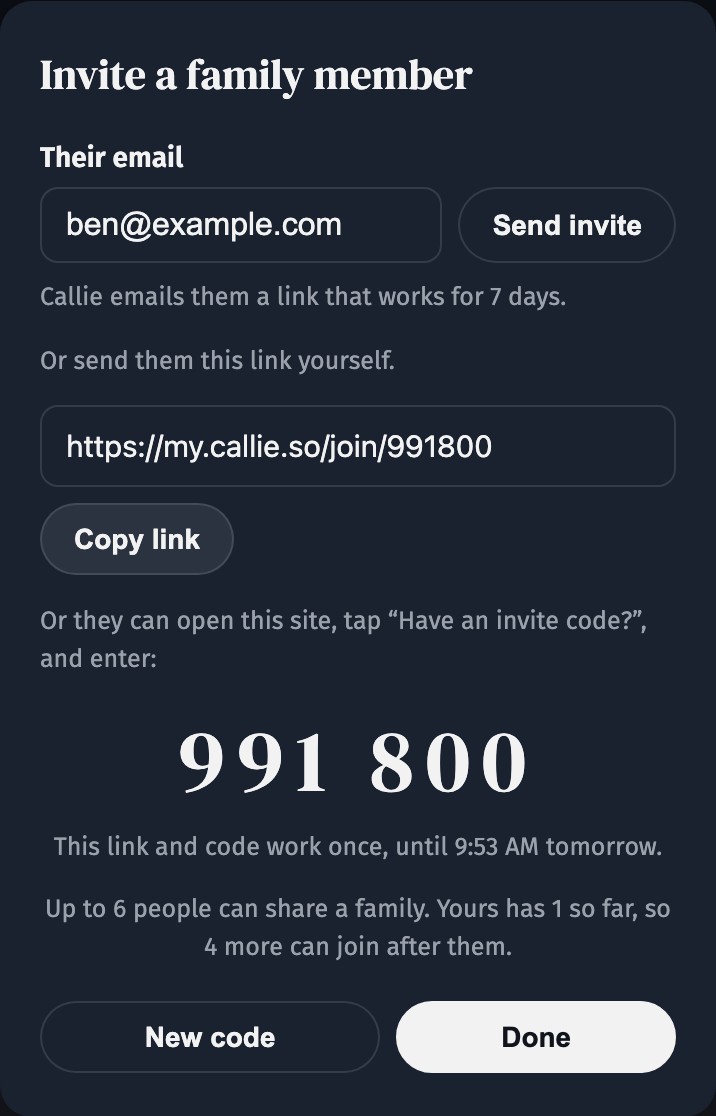
Open Household, and under Family choose Invite a family member. Type their email and Callie sends them an invite that works for 7 days, or send the link it shows, or read out the 6-digit code; those last 24 hours. Each invite works once. Whoever uses it gets their own sign-in inside your family, up to six members in all. Everyone sees and edits the same setup.
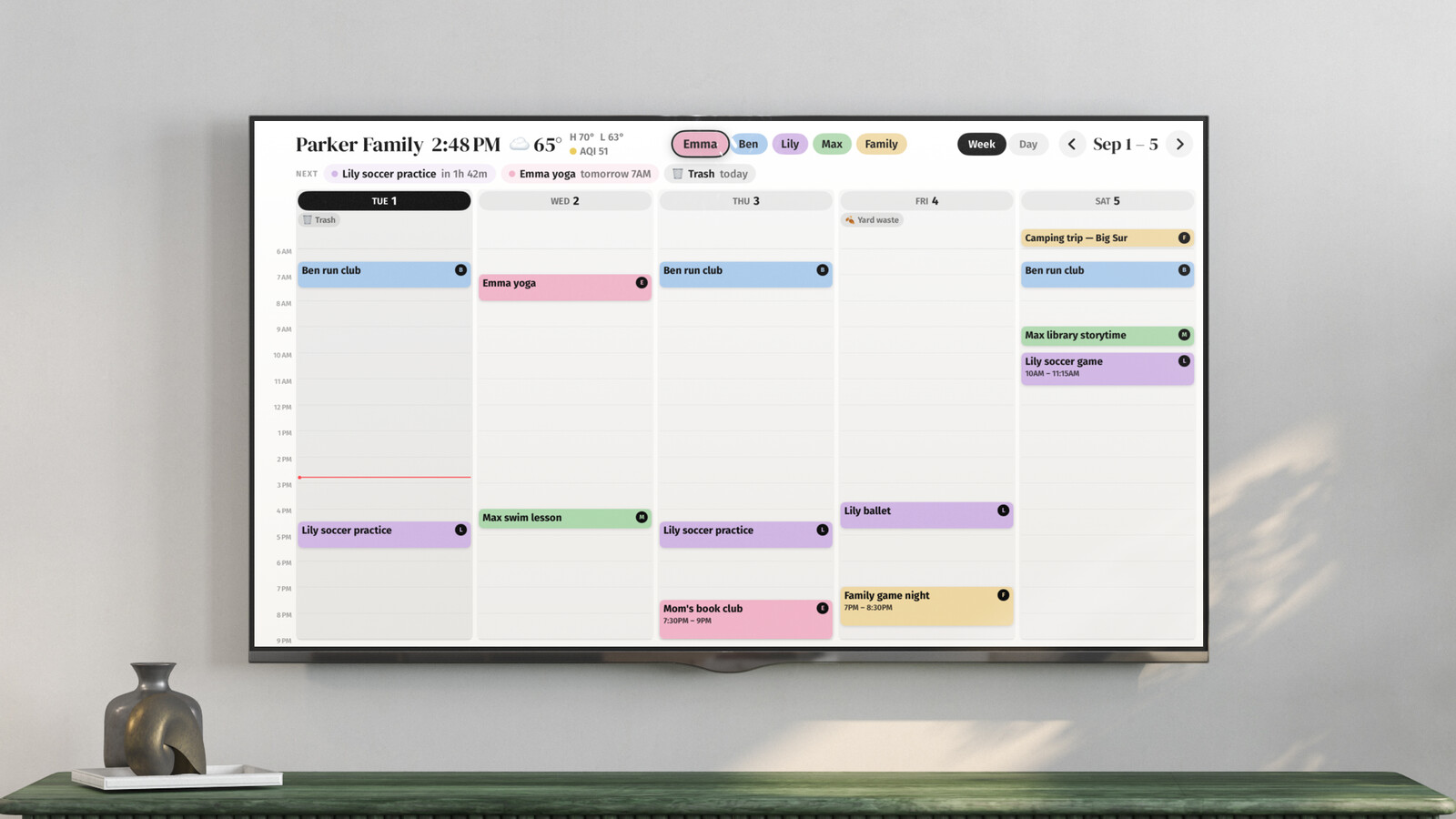
Kids don't need accountsAdd them as people on the calendar instead. They get a color and their events, without a sign-in. There's no limit on people.
More guides
- Adding calendars: Connect Google or Outlook, or paste the feed link from iCloud and others.
- Setting up your screens: Install Callie and put the board on every screen with a 6-digit code.
- Assigning events to people: Everyone gets a color; Callie works out whose event is whose.
Stuck? Contact us for help.